The Digital Architect’s Blueprint: Decoding the DNA of HTML Tags and Elements
If you’ve ever wondered how your browser knows to turn a plain text file into a vibrant webpage, the answer is HTML (HyperText Markup Language).
Think of a website like a building. If CSS is the paint and decor, and JavaScript is the electricity and plumbing, then HTML is the skeleton. It provides the structure, telling the browser exactly where the headers, paragraphs, and images should go.
What is an HTML Tag?
In the world of HTML, we use tags to label different types of content. A tag is like a set of instructions wrapped in "angle brackets" (< >).
Most tags come in pairs to wrap around the content they are describing. Think of them like a shipping box:
The Opening Tag: The top of the box (
<tagname>). It tells the browser, "Hey, a new piece of content starts here!"The Content: What’s inside the box (the text or image).
The Closing Tag: The bottom of the box (
</tagname>). It includes a forward slash to signal, "Okay, we’re done with this section."
Tag vs. Element: What’s the Difference?
These terms are often used interchangeably, but there is a subtle difference that will help you sound like a pro:
The Tag: Just the markers themselves (e.g.,
<p>or</p>).The Element: The entire package—the opening tag, the content inside, and the closing tag all together.
Example:
HTML
<p>I love coding!</p>
<p>is the tag.The whole line above is the paragraph element.

The Rebels: Self-Closing (Void) Elements
Not every element needs a "box" to hold content. Some things are just standalone items, like an image or a line break. These are called Self-closing or Void elements. They don't need a closing tag because they don't wrap around text.
<img>: For displaying images.<br>: For forcing a line break.<hr>: For creating a horizontal thematic line.
HTML
<p>This is a line of text.</p>
<br> <p>This text starts on a new line.</p>
<hr> <img src="path/to/image.jpg" alt="A descriptive image text">
Building Blocks: Block-level vs. Inline
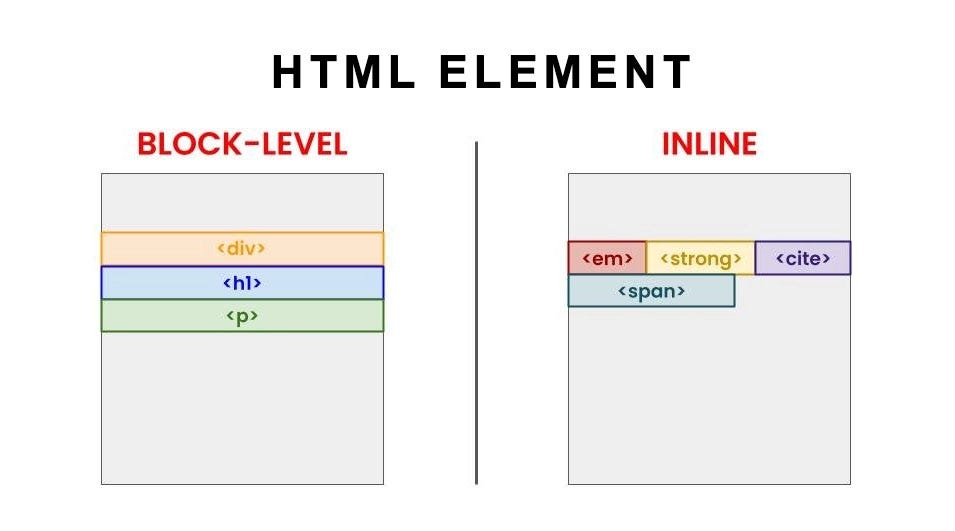
HTML elements behave differently depending on how they sit on the page. Understanding this is the secret to mastering layouts.
1. Block-level Elements
These are the "divas" of HTML. They always start on a new line and take up the full width available, stretching as far left and right as they can.
- Common examples:
<div>,<h1>through<h6>,<p>,<ul>.
HTML
<div>This is a block-level div.</div>
<p>This paragraph is also block-level and will start on a new line.</p>
2. Inline Elements
These are much more social. They only take up as much width as necessary and allow other elements to sit right next to them.
- Common examples:
<span>,<a>(links),<strong>(bold text).
HTML
<span>I am an inline span.</span>
<strong>I am bold inline text.</strong>
<a href="#">I am an inline link.</a>
Commonly Used HTML Tags
Here are the "Essential Eight" tags you’ll see in almost every project, each with a quick code snippet:
Tag | Purpose | Code Snippet |
| Headings: |
|
| Paragraph: The go-to tag for standard text. |
|
| Anchor: Used to create hyperlinks (links to other pages). |
|
| Image: Used to embed pictures. |
|
| Lists: |
|
| Division: A container used to group other elements together. |
|
| Span: An inline container used to style specific parts of a text. |
|
| Importance: Makes text bold and tells the browser it's important. |
|
Ready to Explore?
The best way to learn HTML isn't just by reading—it's by seeing.
Try this: Right-click anywhere on this webpage and select "Inspect" (or press F12). You’ll see the "Elements" tab pop up, showing you the raw HTML skeleton of this very site. Move your mouse over the code, and you’ll see the "boxes" we talked about lighting up on the screen!